

In-Cloud IR: How to Forensically Acquire and Analyze a Compromised Azure VM Without Pulling the Plug

Traditional digital forensics has a straightforward playbook for compromised machines: pull the drive, image it, analyze the image. In cloud environments that approach does not work. You cannot physically pull a disk from a data center you do not have physical access to. Downloading a full virtual disk over the internet for a 512GB drive takes hours and costs a significant amount in egress fees. And shutting down the VM disrupts the business and may destroy volatile evidence.
Azure's in-cloud IR approach solves all three problems.
You can snapshot the VM's disk in seconds — even while the machine is running.
You create a forensic copy without modifying the original.
You spin up a fresh investigation VM in the same data center and analyze the copy there, avoiding download costs entirely.
From snapshot to analysis-ready takes less time than a traditional disk acquisition would take just to image.
This article walks through the complete five-step process, covers the VHD download option when you need it, and introduces the tools and resources that can accelerate your Azure investigations.
Before You Start: Two Key Concepts
Victim VM vs. Forensic VM
The in-cloud IR methodology uses two virtual machines:
Victim VM — The compromised machine you are investigating. Do not work directly on this machine. Your goal is to preserve its state, image its disk, and never modify the original.
Forensic VM — A fresh VM you create specifically for this investigation. This is where forensic tools are installed and where you mount and analyze the copy of the victim's disk.
Keeping these two machines distinct is the forensic integrity backbone of the entire process.
Why Snapshots Only Take Seconds
A disk snapshot in Azure is a full, point-in-time, read-only copy of a virtual disk. Azure uses copy-on-write technology — the snapshot is taken almost instantly, and disk blocks are only actually copied when they are modified after the snapshot is taken.
For investigators this means:
You can snapshot a running VM's disk without shutting it down
The snapshot preserves the exact disk state at the moment of creation
Multiple snapshots can be taken at different points in time
The snapshot is read-only — you cannot accidentally modify it
💡 Investigator Note: Snapshots have an ongoing cost: Standard HDD snapshots cost approximately $0.05 per GB per month, Premium SSD approximately $0.132 per GB per month. For a 128GB OS disk, that is roughly $6-17 per month. Budget accordingly and confirm snapshot retention requirements with your client before starting.
The Five-Step In-Cloud Forensic Acquisition Process
Step 1a: Identify the Victim VM's Disk
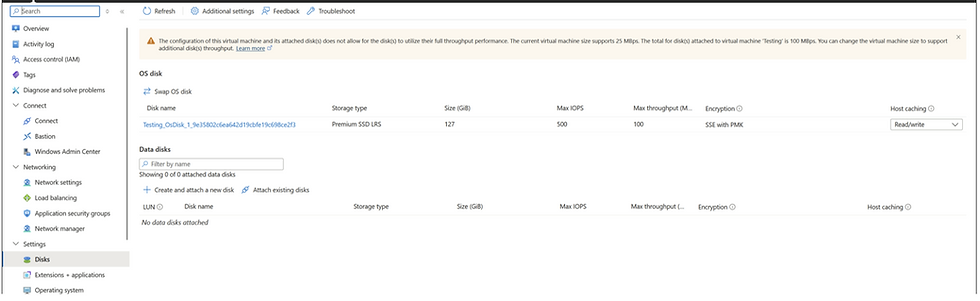
Navigate to the victim VM in the Azure Portal and select the Disks section. For most investigations you will snapshot the OS disk. If the incident involved data stored on a separate data disk — common in database server compromises — you may need to snapshot that as well. Note the disk name before proceeding.

Step 1b: Create the Snapshot
From the disk's overview page, select 'Create snapshot'. Key configuration choices:
Name — Use a descriptive name that immediately identifies this as a forensic artifact. Good convention: VictimVMName-YYYYMMDD-Forensic-Snapshot. Avoid generic names like 'snapshot1' — when you have multiple disks and snapshots in a subscription, clarity is critical.
Snapshot Type — Select 'Full'. This creates a complete, standalone point-in-time copy. 'Incremental' snapshots chain to previous snapshots and are used for backup workflows — not for forensic acquisition.
Storage Type — Select 'Standard HDD'. There is no performance benefit to paying for Premium SSD for a snapshot since it is read-only and will not be accessed frequently.

Step 2: Create a New Disk from the Snapshot
The snapshot is read-only and cannot be attached to a VM directly. You need to create a new writable disk based on the snapshot data. This is the disk you will attach to your forensic VM.
Navigate to the snapshot you just created
Select 'Create disk'
Name the disk clearly — good convention: take the snapshot name and append '-disk'
For Source type, select 'Snapshot' and choose the snapshot you just created
For disk type, select 'Premium SSD' — this disk will be actively used for forensic analysis so performance matters


💡 Investigator Note: At this point if you need to manage costs, you could delete the snapshot after the disk is created. However, keep the snapshot if there is any possibility you will need to re-create the disk. Never compromise forensic integrity to save a few dollars per month.
Step 3: Create the Forensic VM
Create a fresh VM that will serve as your forensic workstation in the cloud. Key considerations:
Specifications — Minimum 4 vCPUs and 16GB RAM is a reasonable baseline. The exact specs depend on which forensic software you will run.
Region — Critical: the forensic VM must be in the same Azure region as the snapshot disk. Azure does not allow attaching disks across regions without additional steps.
OS Disk — The forensic VM gets its own OS disk where you install forensic tools. Premium SSD recommended. Azure typically provisions 128GB with over 100GB free.
Data Disk — During VM creation under the 'Disks' tab, select 'Attach an existing disk' and choose the forensic snapshot disk from Step 2.
Warning: Do not skip the data disk step thinking you can add it after. VMs can become unstable if a disk is added or removed while running. Always shut down the forensic VM before attaching or detaching data disks.


Step 4: Mount the Snapshot Disk
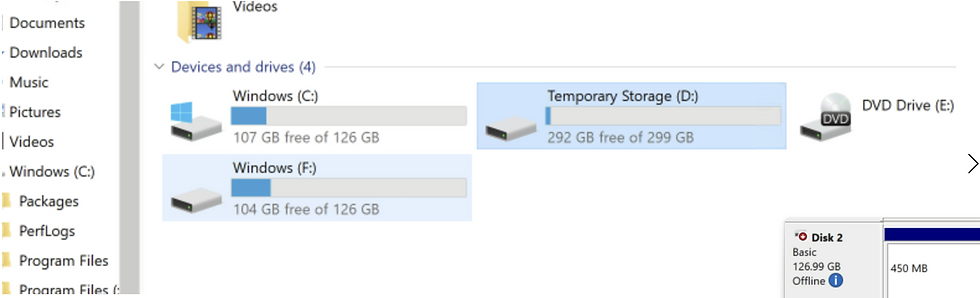
Once the forensic VM is running and you have RDP'd or SSH'd into it, open Disk Management. You will typically see:
Disk 0 — The forensic VM's OS disk (C: drive) — your OS and tools
Disk 1 — Temporary storage (D: drive if present) — not persistent, do not store evidence here
Disk 2 — The snapshot disk containing the victim's OS partition
When you first open Disk Management, Disk 2 will show as 'Offline'. Right-click and select 'Online'. Windows will assign drive letters to the partitions. The victim's OS partition will get a new drive letter, for example G:.
Important: all mounted disks are writable by default. Be careful not to accidentally write to the victim's disk partition. If you corrupt the analysis disk, you can always re-create it from the snapshot — which is exactly why you keep the snapshot.

Step 5: Run Your Forensic Tools
With the victim's disk mounted as a readable drive letter, run your standard forensic toolset against it exactly as you would on a physical machine:
KAPE — Ideal for targeted artifact collection. Fast and low-overhead. Run KAPE against the victim's drive letter to pull shimcache, amcache, LNK files, browser history, event logs, and more.
Autopsy — For full disk analysis and timeline creation. Point it at the mounted volume.
Custom scripts — Any Python, PowerShell, or batch script you would normally run against a drive.
💡 Investigator Note: KAPE is the recommended starting point for most Azure VM investigations. A targeted KAPE collection against the mounted victim disk can complete in 30-60 minutes and gives you the artifacts needed for timeline creation without processing the entire disk.
Alternative Option: Downloading the VHD
The five-step in-cloud process is recommended for most investigations. But there are scenarios where downloading the virtual hard disk to an on-premises forensic workstation makes sense:
Your forensic tools cannot be deployed to Azure due to licensing restrictions
The investigation requires off-network analysis for security reasons
Court proceedings require physical media
To download the VHD:
Navigate to your snapshot in the Azure Portal
Select 'Snapshot export' from the menu
Choose how long the download URL should be valid — set this longer than you think you need. If it expires mid-download you have to start over.
Generate the URL
Under the Networking settings for the snapshot, ensure connectivity is set to 'Public endpoint'
Downloading Faster with AzCopy
The generated URL works in a browser but for any disk larger than a few gigabytes, browser downloads are impractically slow. Microsoft's AzCopy tool is free, multi-threaded, and significantly faster:
azcopy cp "<snapshot export URL>" "C:\Forensics\victim-snapshot.vhd" --check-md5 NoCheckPerformance comparison: a 64GB VHD within the same Azure region downloads in under 20 minutes with AzCopy. The same download via browser can take close to an hour. For larger disks the difference compounds significantly.
💡 Investigator Note: Downloading a large VHD out of Azure incurs network egress charges. A 512GB VHD from Azure's primary commercial regions costs roughly $40-50 in egress fees alone. Confirm who absorbs this cost with your client before initiating the download.
Building a Reusable Forensic VM Image
One of the most time-consuming parts of cloud IR is setting up the forensic VM each time. Azure's VM image gallery solves this permanently.
Create a base forensic VM with all your standard tools pre-installed: KAPE, Autopsy, Volatility, Python with forensic libraries, etc.
Once configured, capture an image of that VM and store it in the Azure Compute Gallery
For any future investigation, deploy a new VM based on that image — fully tooled and ready in minutes
Move the forensic VM to different subscriptions or regions as needed
This investment pays off quickly. The first time you need to investigate two incidents simultaneously, having a ready-to-deploy forensic VM image means you can spin up two identical fully-tooled environments in the time it would take to manually set up one.
Additional Azure Security Resources
Microsoft Sentinel
Microsoft Sentinel is Azure's native cloud-hosted SIEM and SOAR platform. It ingests logs from Azure and non-Azure sources, provides built-in analytics rules for threat detection, and supports playbooks for automated response.
📌 Old: Previously called Azure Sentinel. ➜ Updated: Microsoft rebranded Azure Sentinel to Microsoft Sentinel in November 2021. Functionally identical but you will see both names in documentation depending on when it was written.
Sentinel pricing is per gigabyte of data ingested. Large organizations generating terabytes of logs per day face significant costs. During client engagements, check whether Sentinel is deployed — if it is, it may hold historical log data that is more easily queryable than raw storage account blobs.
Microsoft SimuLand
SimuLand is an open-source initiative from Microsoft's security research team. It provides pre-built lab environments simulating well-known attack scenarios — phishing campaigns, credential theft, lateral movement, data exfiltration — in a controlled Azure environment.
For investigators looking to build and test Azure investigation skills without waiting for a real incident, SimuLand is one of the best free resources available. Run the attack simulations yourself then practice investigating what happened using the techniques in this article series.
Microsoft Incident Response Playbooks
Microsoft has published four detailed IR playbooks covering the most common Azure attack scenarios:
Phishing investigation
Password spray investigation
App consent grant investigation (OAuth token abuse)
Compromised and malicious application investigation
These playbooks provide step-by-step investigative guidance, KQL queries, and detection logic. They assume a solid foundation in Azure — which you now have from this article series.
Offensive Research Tools Worth Knowing
Understanding attacker tooling helps you recognize what evidence to look for. Two notable Azure-focused offensive tools that appear frequently in red team and threat actor activity:
PowerZure — A PowerShell-based framework for assessing and exploiting Azure environments. Used by red teams to identify misconfigurations and escalation paths. PowerShell-based Azure enumeration activity during an investigation may look like PowerZure usage.
MicroBurst — A collection of scripts from NetSPI for discovering Azure services and auditing configuration for vulnerabilities. Also includes post-exploitation capabilities like credential dumping from Azure AD Connect servers. If your client has an Azure AD Connect server and you see evidence of access to it, this may be how the attacker pivoted between on-premises and cloud.
💡 Investigator Note: ADConnect dump is a tool specifically designed to extract and decrypt credentials stored by Azure AD Connect servers. In hybrid environments where on-premises AD and Azure are synced, and you see evidence of access to the Azure AD Connect server, this is a key pivot technique to investigate.
Wrapping Up: The Complete Azure IR Article Series
Across these seven articles, we covered the complete Azure forensics and incident response toolkit from the ground up:
Article 1: Azure architecture — tenant, subscriptions, resource groups, RBAC, resource IDs
Article 2: Access methods — portal, CLI, PowerShell, Graph API, and Cloud Shell forensics
Article 3: Compute and networking — VM types, managed disks, VNets, NSGs, network appliances
Article 4: Tenant and subscription logs — sign-in logs, audit logs, activity logs, KQL queries
Article 5: Storage and NSG flow logs — blob storage, data exfiltration detection, flow log analysis
Article 6: VM-level OS logs — WAD, Windows event logs, Linux syslog, IIS logs
Article 7: In-cloud VM acquisition — snapshot, forensic VM, disk mount, analysis, VHD download
Azure investigations reward preparation. The most significant variable is not the investigator's skill — it is whether the client had logging configured before the incident.
Push hard for: Log Analytics workspace deployed, NSG flow logs enabled at Version 2, storage account access logs enabled, VM diagnostic agents installed, and logs streaming to a SIEM or long-term storage.
----------------------------------------------------------------------------------------------------------Special Thanks
I would like to extend my heartfelt gratitude to one of my dearest friend, a Microsoft Certified Trainer, for her invaluable assistance in creating these articles. Without her support, this would not have been possible. Thank you so much for your time, expertise, and dedication!
---------------------------------------------------------------------------------------------------------
Complete Azure series below:


Comments