

Enabling Auditing, Logging and Log explorer in Google Cloud
Updated: Aug 16

(How logs are generated, why they matter, and how investigators actually use them)
Big picture
Before you can analyze logs, you need to understand where logs even come from in Google Cloud.
Google Cloud generates logs in two fundamental ways:
Platform-level Audit Logs→ Logs generated automatically by Google Cloud itself
Application / workload logs→ Logs generated by what you run (VMs, apps, network traffic, etc.)
From a DFIR point of view:
Audit Logs tell you “what changed in the cloud control plane”
Application logs tell you “what happened inside workloads”

You almost always need both during an incident.
------------------------------------------------------------------------------------------------
Platform Audit Logs – what Google logs for you

Audit Logs record actions like:
Who logged in
Who created / modified / deleted resources
Who changed IAM permissions
Which actions were denied by policy
These logs are generated by Google Cloud, not by your apps.
Why this matters in practice
Audit Logs are:
Hard for attackers to tamper with
Centralized
Often the first place you detect compromise
If IAM abuse, privilege escalation, or lateral movement happens —👉 Audit Logs are your ground truth
------------------------------------------------------------------------------------------------
Enforcing logging at the Organization level

Concept
Google Cloud lets you enforce audit logging:
At Organization
At Folder
At Project
Logging rules flow top-down.
If something is enforced at the Org level:
Projects cannot disable it
They can only add more logging
------------------------------------------------------------------------------------------------
Example (real-world)
An organization enforces:
Admin Write logs at Org level
This means:
Every admin-level change is logged
No project owner can turn it off
Even compromised Owner accounts still generate logs
This is critical for post-compromise investigations.
------------------------------------------------------------------------------------------------
Audit log types you must understand (not all logs are equal)
Required Log Bucket (most important)
These logs:
Cannot be disabled
Stored 400 days
Free
High-value security events
Includes:
Admin Activity Logs
System Events
Enterprise Group Audit Logs
Login events
Access Transparency logs
👉 From an investigator’s perspective: This is your “black box recorder.”
------------------------------------------------------------------------------------------------
Default Log Bucket
These logs:
Often capture denied actions
Stored 30 days for free
Cost money if retained longer
Why denied logs matter:
Brute-force attempts
Repeated IAM failures
Early-stage recon attempts
In real incidents:
The successful login might be one event —the denied attempts tell the full story.
------------------------------------------------------------------------------------------------
Exempted Users – useful but dangerous

Concept
Google Cloud allows exempted users:
Their actions are not logged
Why this exists
Some service accounts generate massive noise
Cost and signal-to-noise ratio matter
DFIR risk
If misused:
An attacker may intentionally target exempted accounts
Blind spots are created in audit trails
👉 As an investigator, always ask:
“Which accounts are exempted from logging — and why?”
------------------------------------------------------------------------------------------------
Cost model (what actually costs money)
Google Cloud logging costs are based on two things, not one:
1. Log Ingestion
Logs entering the logging system
50 GiB per project is free
Required logs do NOT count toward this
2. Log Storage
How long logs are retained
Default bucket: 30 days free
Required bucket: 400 days free
Key insight:
You don’t usually pay because you log too much You pay because you retain logs too long.
For incident response:
Short retention = cheaper
Long retention = better historical visibility
This is a risk vs cost decision, not just technical.
------------------------------------------------------------------------------------------------
Accessing logs – where investigations actually happen

Log Explorer (Google’s built-in “SIEM-lite”)
Google significantly upgraded Log Explorer, and today it behaves very much like:
Splunk
ELK
Chronicle-style query systems

How investigators use Log Explorer

1. Scope
Defines where you’re searching:
Project
Folder
Entire Org (if permissions allow)
In real investigations:
Start broad → narrow down
Scope mistakes = missed evidence
2. Query Builder
Uses structured, SQL-like queries.

You typically hunt for:
IAM permission changes
Service account usage
API key creation
actAs events
Login anomalies
Very similar mental model to:
ELK
Splunk
SOF-ELK timelines
3. Results
Each log entry:

Is collapsed by default
Must be expanded for full context
Important fields often hidden until expanded:
Caller IP
Principal email
Authentication method
Resource name
Permission granted or denied
------------------------------------------------------------------------------------------------
Investigator mindset shift (important)
Traditional IR:
“Logs come from servers”
Cloud IR:
“Logs come from the control plane”
If you only look at VM logs and ignore Audit Logs:
You miss IAM abuse
You miss lateral movement
You miss Org takeover paths
------------------------------------------------------------------------------------------------
Query Builder – what it really does
Concept
Log Explorer’s Query Builder is not magic. It’s simply a UI-assisted way of writing structured queries against JSON logs.

You:
Pick a resource type
Narrow it down using resource labels
Add fields relevant to that resource
Set a time range
The UI then converts your selections into the underlying query syntax.
👉 Important mindset:
Log Explorer will only search what you explicitly ask for, and only inside the selected scope.
Practical implication (DFIR)
If:
You forget to include the right resource type
Or your scope is wrong (wrong project / folder)
Or your time range is too small
Then events do not “not exist” — you just didn’t ask correctly.
This is a very common cloud IR mistake.
------------------------------------------------------------------------------------------------
Resource-based searching (why it feels backward)
Concept
Google Cloud logs are resource-centric, not user-centric.
So instead of:
“Show me everything user X did”
You often start with:
“Show me everything that happened to resource Y”
Example1 :
resource.type="gcs_bucket"
resource.labels.bucket_name="securitz
resource.labels.location="us-east1"
Example2 :
resource.type="audited_resource"
resource.labels.method="google.login.LoginService.riskySensitiveActionAllowed"
resource.labels.service="login.googleapis.com"
Why this is powerful for investigations
This matches Google Cloud’s IAM model:
Permissions are attached to resources
Members are granted access by the resource owner
So if a bucket, VM, or project was abused:👉 Start with the resource, then pivot to the actor.
------------------------------------------------------------------------------------------------
Time range – not just a filter

Concept
Time range is part of the query logic, not just a display option.
You can:
Search seconds, minutes, hours, days
Use custom absolute ranges (incident window)
Investigation workflow
A common IR pattern:
Start with a tight time window (alert timestamp)
Validate suspicious activity
Expand the time window without changing the query
Watch how activity builds up before and after the incident
Log Explorer keeps previously matched results visible when expanding time — this helps you see progression, not just isolated events.
------------------------------------------------------------------------------------------------
Results view – summary vs evidence
Concept
The default results pane:
Shows a condensed summary
Hides most fields
This is intentional — logs are JSON and very verbose.

Investigator reality
The real evidence is always inside the expanded event:
principalEmail
callerIp
userAgent
timestamp
serviceName
methodName
You rarely care about every field. You care about:
Who, from where, did what, to which resource, and when.
------------------------------------------------------------------------------------------------
JSON structure – why queries feel “long”
Concept
Google Cloud logs are structured JSON. That means:
Fields are nested
You must specify full paths
Example:
resource.labels.method="google.login.LoginService.riskySensitiveActionAllowed"Practical tip (this saves time)
If you already found a relevant event:
Expand it
Click a field (e.g., principalEmail)
Select “Show matching entries”
Log Explorer automatically:
Adds the correct field path
Adds the value
Updates your query
This avoids syntax mistakes and speeds up hunting.
------------------------------------------------------------------------------------------------
How investigators actually build queries
You rarely write one “perfect” query upfront.
Real workflow:
Broad resource-based query
Identify suspicious event
Pivot using fields from that event
Narrow down to:
User
IP
Service account
API method
Expand time window
Repeat
This is iterative threat hunting, not static searching.
------------------------------------------------------------------------------------------------
Logging pipeline – what happens behind the scenes
Conceptual flow
Every log follows the same path:
Generated (platform or workload)
Sent to Google Cloud Logging API
Passed through Log Sinks
Either:
Stored
Exported
Dropped
This happens before you ever see the log in Log Explorer.
------------------------------------------------------------------------------------------------
Log Sinks – control points (and blind spots)
Concept
Log Sinks exist at:
Project level
Organization level
They decide:
Which logs are kept
Which logs are excluded
Where logs are sent (storage, SIEM, Pub/Sub)
DFIR relevance
If a log does not appear:
It may have been excluded
It may have been routed elsewhere
It may have been dropped by design
During investigations, always confirm:
Sink configuration
Exclusion rules
Retention settings
Missing logs ≠ attacker tampering (most of the time).
------------------------------------------------------------------------------------------------
Heading: Log Routing: Where Sinks Actually Send Logs
Every log that hits the Cloud Logging API gets pushed to every sink that exists — not just the one you're thinking about. Three sink/bucket pairs exist out of the box:
· Required sink → Required bucket
· Default sink → Default bucket
· Any sink you create → a bucket you choose (or BigQuery / Cloud Storage / Pub/Sub / an external platform)
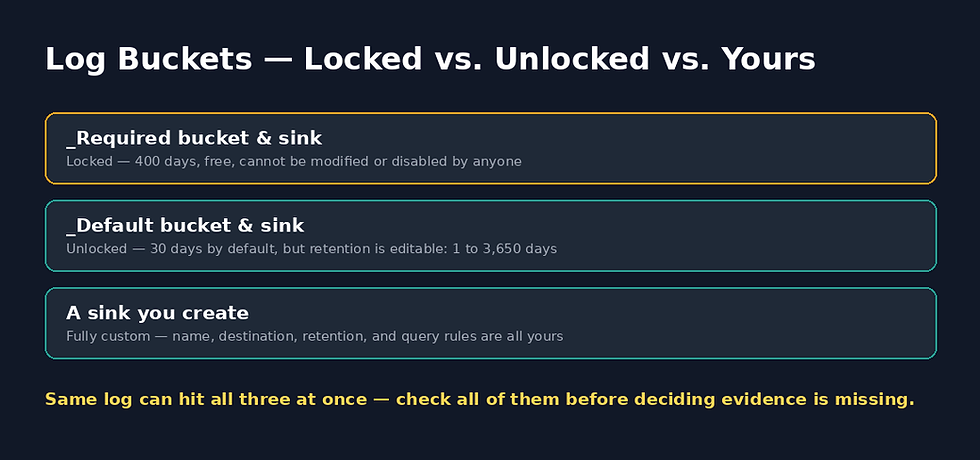
Locked vs. unlocked (this matters more than it sounds)
_Required bucket: locked. 400 days, free, cannot be modified or disabled — not even by an org admin.
_Default bucket: unlocked. 30 days by default, but an admin can change the retention — anywhere from 1 day up to 3,650 days (~10 years).
👉 “Locked” and “unlocked” are Google's actual terms for this in the console — if you see a bucket flagged unlocked, know its retention could've been changed at any point, and check when.
Two things people assume wrong:
Log Buckets are not Storage Buckets.
You can't browse them in Cloud Storage — they're only accessible through the Log Storage / Log Explorer section. Different system, similarly-named.
You can't bulk-export logs already sitting in a bucket after the fact. Log Explorer will let you export up to 10,000 records from a search, but if you need everything, it has to be flowing through a sink to an export destination from the start.
One more option worth knowing about, even if you never touch it:
log buckets can be encrypted with your own keys (CMEK) instead of Google's default encryption. Not something you'll usually need for an investigation, but worth knowing if a client asks whether their logs are protected with customer-managed keys.
------------------------------------------------------------------------------------------------
Exclusions – useful but dangerous
Concept
Exclusions reduce noise:
Ignore repetitive service account actions
Reduce cost
Improve signal quality
Investigation risk
Over-aggressive exclusions can:
Remove early attacker recon
Hide lateral movement
Remove failed attempts that give context
Good practice:
Exclude volume, not security-relevant behavior.
------------------------------------------------------------------------------------------------
Heading: Creating a Log Sink (Hands-On)
If you need logs sent somewhere specific — a bucket you control, BigQuery, Pub/Sub, or off-platform entirely — you create your own sink.
Four things you set:
A unique sink name (unique within the project)
A destination (where the logs actually go)
An inclusion query — SQL-like syntax, same as Log Explorer — that decides what this sink actually captures
An optional exclusion query, to filter out noise that matched the inclusion query but that you don't want stored
Example
Say you want a dedicated sink that captures every IAM policy change in a project — useful to have sitting in its own bucket with its own retention, separate from the noise of everything else:
protoPayload.methodName="SetIamPolicy"Every log event that hits the sink gets checked against that query. Match, and it flows to wherever you pointed the sink. No match, it's ignored by this sink — though it may still hit others.
👉 Remember: every sink evaluates independently. The same log event can pass through one sink and get filtered out of another.
------------------------------------------------------------------------------------------------
Heading: gcloud CLI: Pulling Logs Without the UI
Everything above works through the console, but you can do it all from the CLI too — useful when you're scripting collection across a lot of projects at once.
gcloud logging buckets listShows every bucket in scope — location, retention days, and critically, whether it's locked. This is the fastest way to confirm a bucket's actual retention without digging through console menus.
gcloud logging read 'timestamp<="2026-08-16T00:00:00Z" AND timestamp>="2020-08-16T00:00:00Z"' --format="json" > all_gcp_logs.jsonPulls logs for a time range. Two things worth knowing before you run this: by default, logging read returns a limited number of results and isn't JSON-formatted — you have to explicitly force both full results and JSON output, or you'll walk away thinking you got everything when you didn't.
------------------------------------------------------------------------------------------------
Heading: The Multi-Project Blind Spot (and Exporting Logs Out)
The scenario
Picture this: a threat actor didn't just compromise one VM. They're across Compute Engine, Cloud Storage, and containers, spread across multiple projects — and you're not confident the IAM setup was solid to begin with.
Single-project Log Explorer scoping doesn't cut it here. You need visibility across the whole organization, fast, before you even know exactly what's been touched — exactly the situation “start broad, then narrow down” was built for.
Getting logs out to where you can actually work
When you need to centralize logs from Google Cloud into a SIEM or log aggregator (SOF-ELK, Splunk, whatever your team runs), the mechanism is Pub/Sub — a sink routes to a Pub/Sub Topic, and a Subscription attached to that topic is what actually delivers the messages onward.
Two delivery methods:
Push — Pub/Sub sends the message to your aggregator via HTTP/S POST. Preferred when you can, but it means opening a port on your receiving end.
Pull — your aggregator asks Pub/Sub for messages via the API instead. No inbound port needed, useful if you can't expose one.
A few knobs worth knowing about on the subscription side: messages can be retained even after successful delivery (useful for replay, costs extra), subscriptions can be set to expire after a period of inactivity, and undeliverable messages can be routed to a dead-letter queue instead of just disappearing.
One thing that trips people up the first time: pushed messages arrive wrapped in a Pub/Sub envelope, not as your raw log. The actual log content is base64-encoded inside a data field, alongside Pub/Sub's own messageId, publishTime, and subscription metadata — decode data before you try to parse it as your log.
------------------------------------------------------------------------------------------------
Takeaway
Google Cloud Log Explorer queries are built around resource-centric, JSON-structured logs that require investigators to think differently than traditional user-based logging models. By starting with affected resources, iteratively refining queries using nested fields, and understanding how time ranges and log sinks influence visibility, analysts can reconstruct attacker behavior across projects and organizational boundaries. Effective investigations rely not on writing perfect queries upfront, but on pivoting through relevant fields and understanding where logs may be excluded or redirected within the logging pipeline.
------------------------------------------Dean------------------------------------------------


Comments