

Getting Into Azure: Four Access Methods — And the Forensic Artifacts Each One Leaves Behind

Every Azure investigation starts with access. Before you can query a single log or examine one VM, you need to authenticate to the environment and navigate to what you need. But access goes both ways — the same methods you use to investigate are the same ones threat actors use to carry out attacks.
Understanding all four access methods is not just procedural. It directly informs what evidence you should be looking for and where.
The Four Ways Into Azure
Microsoft offers four primary interfaces for interacting with Azure resources:
The Azure Portal — a graphical web interface
Azure CLI — a command-line interface using 'az' commands
Azure PowerShell — a scripting interface using the Az module
The Microsoft Graph API — a RESTful API for programmatic access
An important point: all four methods route through the Azure Resource Manager. No matter which interface an action comes from, it gets logged in the same place. A GUI click in the portal and a CLI command produce the same underlying log entry. There is no hidden channel. That is actually a significant advantage for investigators.
Method 1: The Azure Portal
The Azure Portal is the web-based GUI that most users interact with daily. It requires authentication — username and password, with MFA if configured (and it should be).
For incident responders, the portal is the fastest way to get an initial lay of the land. Three views are particularly useful right from the start:
All Resources — a complete list of every provisioned resource across the subscription. Usually the first thing to review when understanding what is running in the environment.
Activity Log — a timeline of resource-level changes. Critical for tracing what was created, modified, or deleted.
Microsoft Entra ID — the identity hub for reviewing user accounts, sign-in logs, and audit events.

The portal is excellent for quick lookups and initial assessment, but it has real limitations for deep investigations. Most log views in the portal are capped at 30 days of retention and filtering options are basic. For anything beyond a surface-level review, move to the Log Analytics workspace or export logs to a more capable tool.
📌 Old: The portal still references 'Azure Active Directory' in many places. | Updated: Since the October 2023 rebrand to Microsoft Entra ID, the portal now shows 'Microsoft Entra ID' in the left navigation. Functionally identical — logs, sign-in records, and audit data are all in the same place.
Method 2: Azure CLI
The Azure CLI gives you a set of 'az' commands that can manage virtually every resource in Azure. It runs on Windows, macOS, and Linux, and can also be run directly from the Azure Portal's built-in Cloud Shell.
The CLI is preferred by many investigators because it is scriptable, reproducible, and does not require navigating through menus. Here is the basic authentication and navigation workflow:
az loginThis opens a browser for authentication. Once done, list available subscriptions:
az account listSelect the relevant subscription:
az account set --subscription "Production Environment"From here, virtually anything you can do in the portal can be done via CLI. The practical advantage during an investigation is speed and repeatability — you can build a set of commands that quickly pulls the artifacts you need and can be re-run to refresh data.

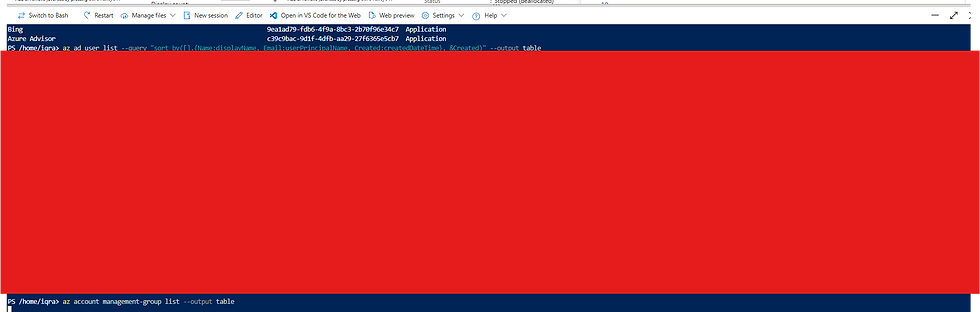
You can use Bash as well

💡 Investigator Note: If you are working from a client-managed machine where you would rather not install the CLI, Cloud Shell gives you CLI access directly from the browser without any installation required.
Method 3: Azure PowerShell
Azure PowerShell is the Microsoft-native scripting approach. It uses the Az PowerShell module — not the older AzureRM module, which is now deprecated and should not be in use in any modern environment.
📌 Old: Older environments may still have the AzureRM module installed. | Updated: Microsoft deprecated AzureRM in February 2024 and removed it from the PowerShell Gallery. Any environment still using AzureRM-based scripts is running on an unsupported module. Flag it — it suggests outdated tooling and a potentially less-maintained environment.
Setting up Azure PowerShell on a fresh Windows machine:
# Step 1: Open PowerShell as Administrator
# Step 2: Install the Az module
Install-Module -Name Az -AllowClobber

# Step 3: Verify installation
Import-Module Az; Get-Module Az

# Step 4: Authenticate
Connect-AzAccount
Once connected, PowerShell equivalents of common investigation tasks are available. For example, to retrieve activity logs:
Get-AzLog -ResourceProvider "Microsoft.Compute" -DetailedOutputPowerShell also lets you extract VM configuration data from logs — useful when you need to understand what a VM looked like at a specific point in time:
$results = Get-AzLog -ResourceProvider "Microsoft.Compute" -DetailedOutput
$results.Properties | foreach {$_} | foreach {
    $contents = $_.Content
    if ($contents -and $contents.ContainsKey("responseBody")) {
        $fromjson = ($contents.responseBody | ConvertFrom-Json)
        [PSCustomObject]@{
            VmId   = $fromjson.properties.vmId
            VmSize = $fromjson.properties.hardwareprofile.vmsize
        }
    }
}
Method 4: The Microsoft Graph API
The Graph API is a RESTful API that allows programmatic access to Azure and Microsoft 365 data. It predates the event hub as an integration mechanism, which means you will frequently encounter it in SIEM configurations — many organizations have their SIEM pulling data from Azure via the Graph API.
From an investigative standpoint, the Graph API matters for two reasons: some data is only accessible through it and not through the portal or CLI; and threat actors frequently abuse application tokens obtained through the Graph API to maintain persistent access without needing a user's password.
When reviewing an environment's logging configuration, always check whether a SIEM is connected via Graph API or event hub — this may reveal a log repository your client forgot to mention.
💡 Investigator Note: Graph API supports multiple languages: Python, Node.js, PHP, C#, and others. If your client's development team has built internal tools, check whether they use the Graph API — those tools could be useful data sources or, if compromised, vectors for data exfiltration.
Cloud Shell: The Built-In Terminal — and a Forensic Goldmine
Cloud Shell is one of Azure's most convenient features and one of its most overlooked forensic artifacts. It is a fully functional command-line terminal available directly inside the Azure Portal — no installation required. When a user clicks the terminal icon, they choose between Bash (using Azure CLI) or PowerShell.
For administrators it is a huge convenience. For investigators it raises an important question: if a threat actor obtained Azure credentials and used Cloud Shell, would you be able to tell — and would you be able to see what they did?
The answer depends on two things: which shell they chose, and whether Cloud Shell was running in persistent or ephemeral mode..
First Step: Determine Which Mode Was Used
Before looking for any Cloud Shell artifacts, you need to establish whether Cloud Shell was even configured with persistent storage.
Azure Cloud Shell now runs in two distinct modes:
Persistent Mode — When a user first launches Cloud Shell and chooses to mount a storage account, Azure creates a dedicated storage account and file share to preserve the home directory and command history across sessions. This is the mode that leaves forensic artifacts.
Ephemeral Mode — When a user launches Cloud Shell without mounting any storage (they click 'proceed without storage' or Azure prompts them with an ephemeral session), no storage account is created. The session is wiped clean when it ends. No .bash_history
survives. No artifacts remain.
You will know ephemeral mode is active when you see this message at the top of the Cloud Shell session:
"Your Cloud Shell session will be ephemeral so no files or system changes will persist beyond your current session."
To check whether persistent Cloud Shell storage exists in the environment, run these two commands:
az group list --query "[?contains(name, 'cloud-shell')]" --output tableaz storage account list --query "[?contains(resourceGroup, 'cloud-shell')]" --output tableIf both commands return empty output, no persistent Cloud Shell storage exists in that subscription.
Either the environment uses ephemeral mode, or Cloud Shell has never been used. Either way — no file-based artifacts to collect.
💡 Investigator Note: Empty output from both commands does not mean Cloud Shell was never used. It means no persistent artifacts were stored. The sign-in logs and activity logs will still show if Cloud Shell was accessed — check those regardless.
Cloud Shell Bash — Persistent Mode: The Forensic Trail
When a user has configured persistent Cloud Shell storage and selected the Bash environment, Azure creates a storage account and file share to store the home directory. This is where the forensic artifacts live.
To find the storage account, look for a resource group named
cloud-shell-storage-<region>for example, cloud-shell-storage-eastus. The storage account inside will have an auto-generated name. Once you locate it, navigate to File Shares inside the storage account.
⚠️ Updated: Older documentation states the storage account name consistently starts with the letters 'cs'. This may no longer be reliable in newer Azure environments. Use the resource group name 'cloud-shell-storage-<region>' as the more dependable way to locate it.
Inside the file share you will find the user's home directory. The artifacts that matter most:
.bash_history — every command run in the Bash Cloud Shell session is recorded here. This is your primary evidence source. Even if a threat actor was careful, there is always a chance they did not bother clearing history in a shell they expected to be temporary.
.wget-hsts — if the threat actor used wget to download files such as tools, scripts, or malware, entries appear here. The HSTS file records each HTTPS host that wget contacted, including timestamps.
Other Linux artifacts — depending on what the attacker did, additional traces may be present such as downloaded scripts, shell configuration files, and temporary files.
To find and collect these artifacts during an investigation:
Run the two resource group and storage account commands above to locate the persistent Cloud Shell storage.
Open Azure Storage Explorer and connect to the identified storage account.
Navigate to File Shares → .cloudconsole → download acc_<username>.img.
Mount the disk image on a Linux machine:
sudo mount -o loop acc_username.img /mnt/cloudshellNavigate to the history files:
cat /mnt/cloudshell/.bash_history
cat /mnt/cloudshell/.wget-hsts
Check for any other files the attacker may have downloaded or created
Cloud Shell PowerShell — Persistent Mode: Not a Complete Blind Spot
In persistent mode, both Bash and PowerShell use the exact same home directory persistence mechanism. Azure stores the entire $HOME directory as a disk image (acc_<username>.img) in the same storage account and file share used by Bash. PowerShell writes its command history using PSReadLine to:
~/.local/share/powershell/PSReadLine/ConsoleHost_history.txtThis file lives inside $HOME, which means it is inside the disk image, which means it is recoverable from the storage account — using the exact same steps as for Bash.
How to Recover PowerShell History
Locate the storage account using the same steps as Bash (cloud-shell-storage-<region> resource group).
Download acc_<username>.img from File Shares → .cloudconsole.
Mount the disk image:
sudo mount -o loop acc_username.img /mnt/cloudshell4. Read the PowerShell history:
cat /mnt/cloudshell/.local/share/powershell/PSReadLine/ConsoleHost_history.txt💡 Important Caveat: PSReadLine writes its history file at session end, not in real time. If the attacker's session ended abnormally (browser closed, timeout, force-kill), the most recent commands may not have flushed to disk. .bash_history has a similar but less severe gap. Always check both files if both shells were used
When PowerShell IS a Blind Spot
PowerShell Cloud Shell only has no file artifacts in one scenario: ephemeral mode. If the attacker used ephemeral mode with PowerShell, no storage account is created and no history file is written. In this case, fall back to the Azure Activity Log and sign-in logs for evidence of what actions were taken.
💡 Investigator Note: Even without command history, the Activity Log records every resource-level action (creating VMs, modifying configs, querying key vaults). You will not see raw commands typed, but you will see the effects of those commands. This is a strong argument for ensuring Activity Logs and resource-specific logs are flowing to a Log Analytics workspace or SIEM before an incident happens.
Quick Reference: What to Expect by Mode and Shell
Mode | Shell | Storage Account Created | Forensic Value |
Persistent | Bash | Yes — cloud-shell-storage-<region> | High — .bash_history, .wget-hsts available |
Persistent | PowerShell | Yes — same storage account as Bash | Medium-High — ConsoleHost_history.txt via PSReadLine (inside acc_user.img) |
Ephemeral | Bash or PowerShell | No | None — session wiped. Check sign-in logs and Activity Log only. |
Investigator Tip: When You Cannot Find the Storage Account
If the cloud-shell-storage-<region> resource group does not appear, try these steps in order:
Check all subscriptions — Cloud Shell storage is created in whichever subscription was active when Cloud Shell was first launched. Switch subscriptions and re-run the search commands.
Search by tag across all subscriptions:
az resource list --tag ms-resource-usage=azure-cloud-shell -o tableIf the storage account was deleted, check the Activity Log for: Microsoft.Storage/storageAccounts/delete
If nothing is found at all, the session was likely ephemeral — fall back to sign-in logs and Activity Log.
💡 To confirm Cloud Shell was used at all: check Entra ID Sign-in logs and filter by application ID c44b4083-3bb0-49c1-b47d-974e53cbdf3c. This is the Azure Cloud Shell app ID. Sessions appear here regardless of whether persistent or ephemeral mode was used.
Choosing Your Access Method as an Investigator
In practice you will use all four methods at different points in an investigation. Here is a rough guide:
Portal — Start here for initial orientation. Get an overview of resources, check sign-in logs for recent activity, and verify your access level.
CLI (az commands) — Use for bulk enumeration: listing resources, querying role assignments, pulling activity logs across subscriptions.
PowerShell — Use when you need to process log output programmatically or when your client's existing scripts are PowerShell-based.
Graph API — Use when you need identity-related data not readily available through the other interfaces, or when building automated collection scripts.
In the next article, we move from access methods into the infrastructure itself — specifically virtual machines and networking — which are typically at the center of any Azure incident.
Special Thanks
I would like to extend my heartfelt gratitude to one of my dearest Friend, a Microsoft Certified Trainer, for her invaluable assistance in creating these articles. Without her support, this would not have been possible. Thank you so much for your time, expertise, and dedication!
------------------------------------------Dean--------------------------------------------------------
Next Article :


Comments