

Azure Logging Part 1 — Tenant and Subscription Logs: The Starting Point for Every Azure Investigation

Logs are the heartbeat of any Azure investigation. But Azure's logging architecture is not a single flat file you download and read — it is a multi-layered system where different types of activity are captured in different log sources, stored in different places, and queried in different ways. Miss a layer and you miss evidence.
The Five Log Sources You Need to Know
Azure organizes its logs into five categories. Understanding these upfront prevents the confusion of wondering why an action does not appear in the log you are searching:
Tenant Logs — Identity events: sign-ins, user management, policy changes. ON by default. This is where you catch credential abuse, password spray attacks, and unauthorized access.
Subscription Logs — Resource management events: creation, deletion, and modification of Azure resources. Also ON by default. Critical for crypto mining investigations, sabotage cases, and tracking attacker infrastructure setup.
Resource Logs — Logs generated by specific Azure resources. OFF by default. This is where data exfiltration evidence lives — and where many investigators find the cupboard bare.
Operating System Logs — Windows event logs or Linux syslog from inside the VMs. OFF by default. Requires an agent installed on the VM.
Application Logs — Custom logs generated by applications running in Azure. OFF by default.
The uncomfortable reality:
when you arrive at an incident, there is a real chance only the first two categories are being collected. If your client did not set up a Log Analytics workspace and configure the optional log sources, you are working with maybe 20% of the potential evidence. Part of your job is to turn those on immediately so you do not lose any more data going forward.
💡 Investigator Note: Educating clients on log configuration is incident response step zero. The best time to set up logging is before anything happens. The second-best time is the moment you get the call.
The Log Analytics Workspace: Your Central Investigation Hub
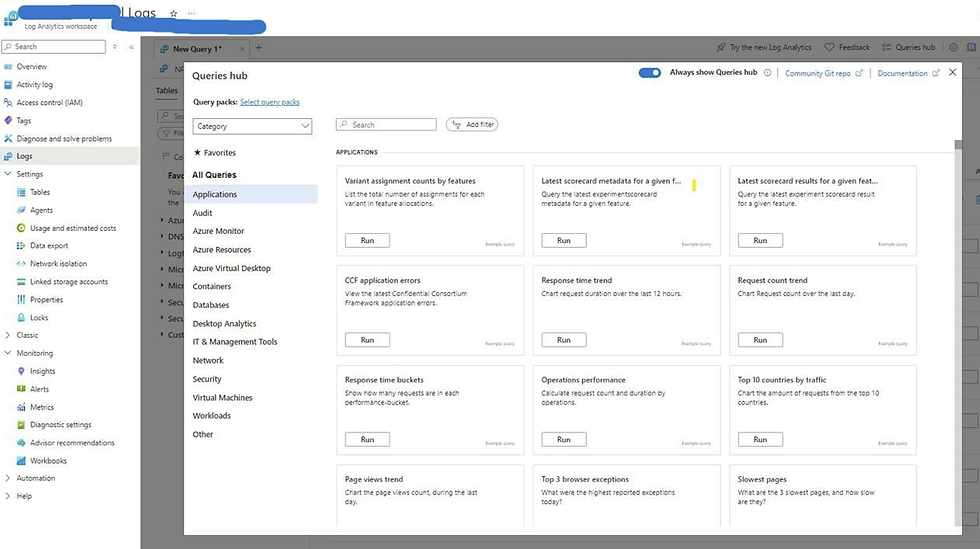
Microsoft stores some logs by default and makes them accessible in the Azure Portal. But for any serious investigation, you need logs aggregated in one place where you can query them properly. That place is the Log Analytics Workspace.
The Log Analytics Workspace collects and aggregates logs from Azure resources, on-premises systems, and other sources. It organizes everything into tables — each log source gets its own table — and exposes them for querying using the Kusto Query Language (KQL).
The default workspace can handle up to 6GB of data per minute with a daily cap of 4TB, which is sufficient for all but the largest enterprise environments.
Setting Up a Log Analytics Workspace
If you are called to an environment that does not have one configured, here is how to create it:
Step 1 — In the Azure Portal, search for 'Log Analytics workspaces' in the search bar
Step 2 — Select 'New' to create a workspace
Step 3 — Fill in the Subscription, Resource Group, Name, and Region
Step 4 — Select 'Review + Create'
Once the workspace exists, configure log sources to send their data there. The workspace becomes your single pane of glass for the investigation.


Tenant Logs: Where Identity Events Live
Tenant logs cover everything related to identity and authentication. This is where Microsoft Entra ID (formerly Azure Active Directory) writes its records — who logged in, when, from where, whether they succeeded or failed, and what administrative changes were made to the directory.
📌 Old: Throughout Azure documentation you will see 'Azure Active Directory' and 'AAD' used frequently. ➜ Updated: Microsoft renamed Azure Active Directory to Microsoft Entra ID in October 2023. Functionally identical. In the Azure Portal, search for 'Microsoft Entra ID'. In KQL queries, some table names still use 'AAD' prefixes.
What the Tenant Log Contains
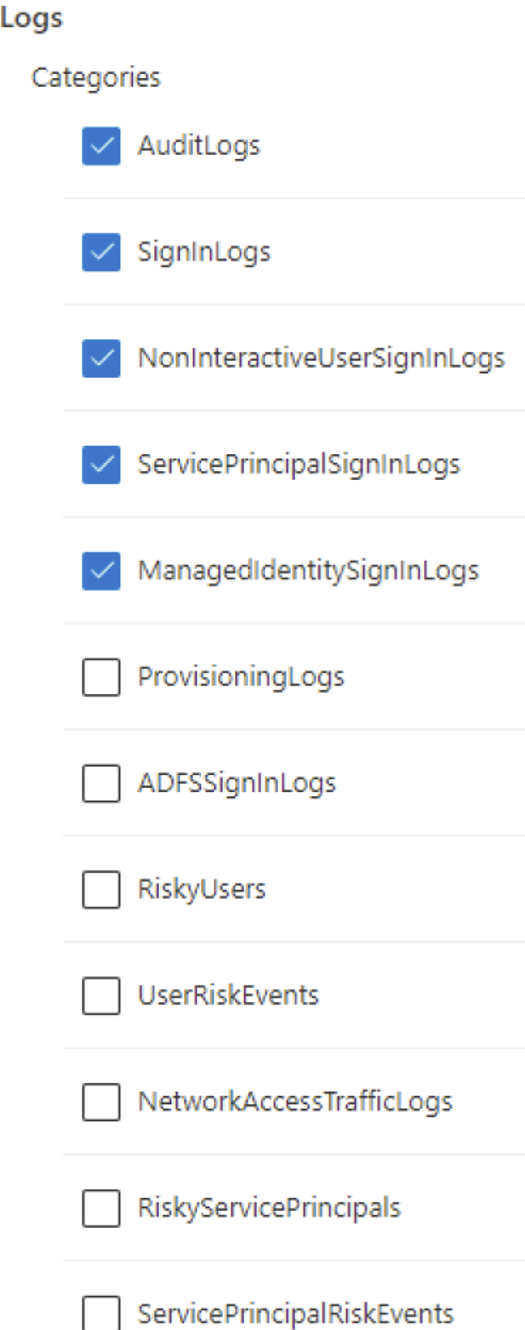
Audit Logs — Changes to the directory: adding or removing users, modifying groups, changing roles, updating policies. If someone added an attacker-controlled account or escalated privileges, this is where you find it.
Sign-in Logs — Authentication events for every user sign-in. Includes timestamp, user, IP address, location, application, success/failure status, and whether MFA was satisfied.
Non-interactive User Sign-ins — Sign-ins that happen without user input such as refresh tokens and legacy auth.
Service Principal Sign-ins — Authentication events for applications and service accounts.
Managed Identity Sign-ins — Authentication events for Azure-managed identities.
Provisioning Logs — Activity related to user and group provisioning.
Identity Protection Logs — Risk events flagged by Microsoft's detection engine: RiskyUsers, UserRiskEvents, RiskyServicePrincipals.


Reading Sign-In Log Status Values
Every sign-in event has a Status field with one of three values:
Success — Authentication completed successfully.
Failure — Authentication was rejected: wrong password, blocked account, MFA failure, etc.
Interrupted — The sign-in flow was paused mid-process, most commonly because the 'Stay signed in?' prompt appeared and the user closed the browser or selected No. Do not confuse Interrupted with a suspicious event — it is usually benign.
When investigating credential abuse, focus on patterns:
repeated failures from a single IP (password spray), failures from unusual geographies, or a success event immediately after a failure burst. The MFA column tells you whether multi-factor authentication was enforced for each sign-in.
💡 Investigator Note: The portal only shows the last 30 days of sign-in logs. For anything older, you need logs exported to a Log Analytics workspace or storage account. If those were not configured before the incident, you have a hard 30-day limit on visibility.
Sending Tenant Logs to Log Analytics
To send Entra ID logs to your Log Analytics Workspace:
Step 1 — Search for and open 'Microsoft Entra ID' in the portal
Step 2 — In the left menu, select 'Diagnostic settings'
Step 3 — Select 'Add diagnostic setting'
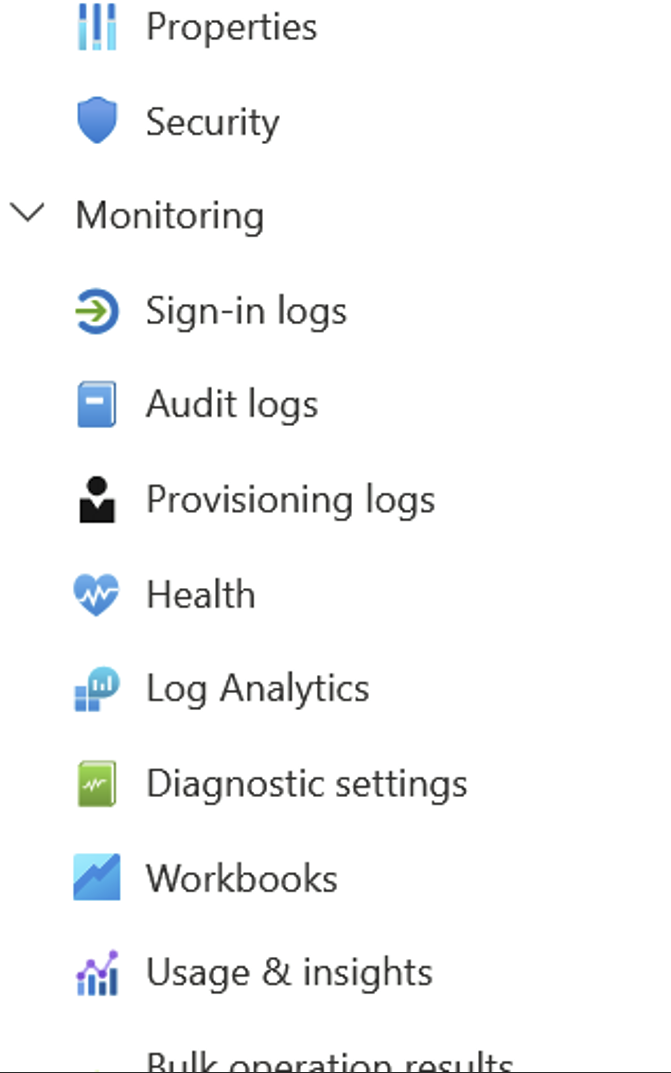
Step 4 — Select the log categories you want (SigninLogs, AuditLogs, etc.) and choose your Log Analytics Workspace as the destination


Querying Tenant Logs with KQL
Once your logs are in the workspace, query them using KQL — similar to SQL but optimized for log data. Here are practical examples:

All successful sign-ins in the last 24 hours:
SigninLogs
| where TimeGenerated > ago(1d)
| where ResultType == 0
Sign-ins from a specific country:
SigninLogs
| where TimeGenerated > ago(7d)
| where Location == "RU"
| project TimeGenerated, UserPrincipalName, AppDisplayName, IPAddress, ResultType
Accounts with multiple failures — potential password spray:
SigninLogs
| where TimeGenerated > ago(1d)
| where ResultType != 0
| summarize FailureCount = count() by UserPrincipalName, IPAddress
| where FailureCount > 10
| order by FailureCount desc
Exporting Tenant Logs for SIEM or Long-Term Storage
Two scenarios where you will want logs outside the workspace:
Storage Account (Archival) — For retention beyond the workspace limit, export logs to an Azure Storage Account. Once there, specify a retention period. Useful for compliance and for having a separate copy an attacker cannot delete by compromising your management plane.
Event Hub (SIEM Integration) — If your client has a SIEM, the Event Hub streams logs in real time. Splunk, QRadar, Microsoft Sentinel, and most other SIEMs have native connectors for Azure Event Hub.
💡 Investigator Note: When investigating, always check whether an event hub is configured. If it is, there may be a SIEM your client forgot to mention that holds historical log data going back much further than what is visible in Azure.
Subscription Logs (Activity Logs): Tracking What Was Built, Changed, or Destroyed
Subscription logs — officially called the Activity Log — record every operation performed through the Azure Resource Manager. Any time a resource was created, modified, or deleted, there is a record here. Activity logs are enabled by default and require no additional configuration.
This log source is particularly valuable for two types of investigations:
Crypto mining incidents — Attackers spin up high-compute VMs to mine cryptocurrency. Activity logs show when those VMs were created, what size they were, and which account created them.
Sabotage and destructive attacks — Activity logs show mass deletion events, including which resources were deleted, by whom, and when.
Key Fields in the Activity Log
ResourceId — The full resource identifier of what was acted on. Tells you exactly what was touched.
OperationName — What action was taken. Format: Provider/ResourceType/Action. For example: MICROSOFT.COMPUTE/VIRTUALMACHINES/WRITE for creating or modifying a VM.
ResultType / ResultSignature — Whether the operation succeeded or failed.
CallerIpAddress — The IP address of the entity that made the request. Critical for attribution.
CorrelationId — A GUID that links related sub-operations together. When creating a VM triggers multiple sub-operations (disk, NIC, IP address), they all share the same CorrelationId.
Claims — The sub-field under Identity that contains information about the principal who made the request.

Send Activity Logs to your workspace using 'Export Activity Logs' in the portal. Once configured, data populates the AzureActivity table.

Find all delete operations — attacker covering tracks or ransomware:
AzureActivity
| where OperationNameValue contains "DELETE"
| project TimeGenerated, OperationNameValue, ResourceId, CallerIpAddress, Caller
| order by TimeGenerated desc
This query is particularly telling when you see a resource group deletion. Deleting a resource group removes everything inside it — VMs, disks, NICs, IP addresses — in a single action.
Enumerate all unique compute operations to understand attacker activity on VMs:
AzureActivity
| where OperationNameValue contains "COMPUTE"
| distinct OperationNameValue
Count operations by type for a scope-of-impact overview:
AzureActivity
| where OperationNameValue contains "COMPUTE"
| summarize count() by OperationNameValue
This gives you a pivot-table-style summary: how many VMs were created, started, stopped, deleted. The volume and pattern of operations often tells a story without needing to look at individual entries.
In the next article, we cover the log sources that are off by default but critical for deep investigations: NSG flow logs, storage account access logs, and operating system and application logs from inside the VMs themselves.
----------------------------------------------------------------------------------------------------------Special Thanks
I would like to extend my heartfelt gratitude to one of my dearest friends, a Microsoft Certified Trainer, for her invaluable assistance in creating these articles. Without her support, this would not have been possible. Thank you so much for your time, expertise, and dedication!
-------------------------------------------------------------------------------------------------------------
Next Article:


Comments