

Tracking Drive Letters and Volume GUIDs : A Forensic Guide
Updated: Jan 24, 2025

When investigating devices connected to a computer, every small detail can help.
Identifying Drive letter:
For instance, the volume name used by a device can link it to files like LNK files, which store volume name
The drive letter assigned to the device can lead us to other artifacts like Prefetch files, RecentDocs, Jump Lists, ShellBags, and more.
But there’s a catch: drive letter info isn’t always available. Windows only keeps records of the last device assigned to a specific drive letter. Also, the same drive letter can be reused for multiple devices(This can be problematic in because most recent device and its associated information will be recorded). Still, certain artifacts, especially in newer Windows versions (10 and 11), tend to stick around longer, even after system updates.
------------------------------------------------------------------------------------------------------------
Let’s look at two key places where you can dig for drive letter and volume name info: VolumeInfoCache and MountedDevices.
1. VolumeInfoCache: A Quick and Easy Check
If you're using Windows 7 or later, this is your starting point.
The VolumeInfoCache is located at:
SOFTWARE\Microsoft\Windows Search\VolumeInfoCacheThis key contains sub-keys for each drive letter (like C:, D:, E:, etc.). Each sub-key has a VolumeLabel value, which tells you the volume name of the last device connected to that drive letter.

Why use it?
Quick and simple: It’s easier to read compared to other registry keys.
Good for SCSI drives and VHDs: Especially useful for modern devices like virtual hard drives or USB drives using UASP mode.
Limitations:
Only records the last device assigned to each drive letter.
Timestamps here (the “last write time” of sub-keys) aren’t always reliable for figuring out exactly when the device was connected.
2. MountedDevices: A More Detailed Look
If VolumeInfoCache doesn’t give you what you need, try checking
SYSTEM\MountedDevices:
This key tracks drive letters and the devices mounted to them. It’s especially useful for USB thumb drives (USBSTOR devices).
How it works:
Look for values like \DosDevices\E: (where "E:" is the drive letter).
Inside the value data, search for the device's iSerialNumber. This links the drive letter to the specific device.

Things to keep in mind:
Devices can be mounted with different drive letters over time, so check all drive letter values.
You might not find a match if another device was mounted at the same drive letter later.
-------------------------------------------------------------------------------------------------------------
Special Cases: Hard Drives and Partition Types
Hard drives and SSDs (especially those with multiple partitions) are trickier to profile. Here’s how they work based on the partition scheme:

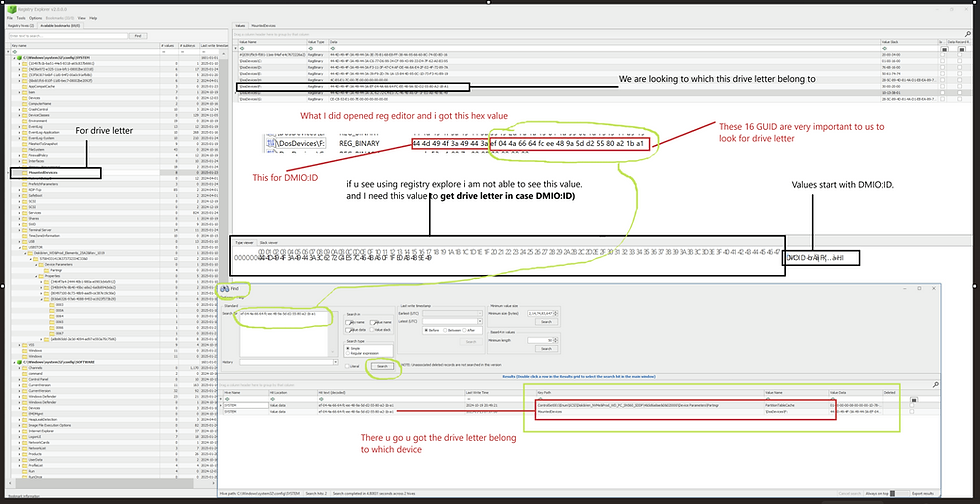
GPT Partitions:
Values start with DMIO:ID.
The last 16 bytes in the value are the Unique Partition GUID.
Search for this GUID in the registry to find keys tied to the original device.
For MBR Partitions:
If you do not see DMIO:ID at the start of a drive letter value, and do not see a USBSTOR Device ID and iSerialNumber, you are likely looking at partition data from a device using the older Master Boot Record (MBR) partition scheme

The first 4 bytes represent the Disk Signature.
Search for this Disk Signature in the registry to uncover related keys that identify the device
-------------------------------------------------------------------------------------------------------------
Why This Matters
Understanding where and how to find drive letter and volume name info can make all the difference in your investigation.
While VolumeInfoCache is a fast and easy starting point,
SYSTEM\MountedDevices gives you a deeper dive, especially for older or more complex devices.
With these tools, you’ll be able to connect devices to their artifacts and uncover the story behind what was plugged in and when.
-------------------------------------------------------------------------------------------------------------
What’s a Volume GUID?
A Volume GUID (Globally Unique Identifier) is Windows’ way of identifying a specific volume or partition on a device. It’s a unique name enclosed in curly braces
\??\Volume{???????-????-????-????-??????}For devices like USB flash drives (MSC USBSTOR), this Volume GUID can help us track down user activity tied to the device in later steps.
How to Find Volume GUIDs for USB Devices
If you’re profiling a USB flash drive, check the value data of Volume GUID entries within the MountedDevices key. Look for the device’s iSerialNumber (the unique serial number). If it matches, you’ve found the Volume GUID for that device.
<I do not have practical screenshot to show. I hope u understood how to find>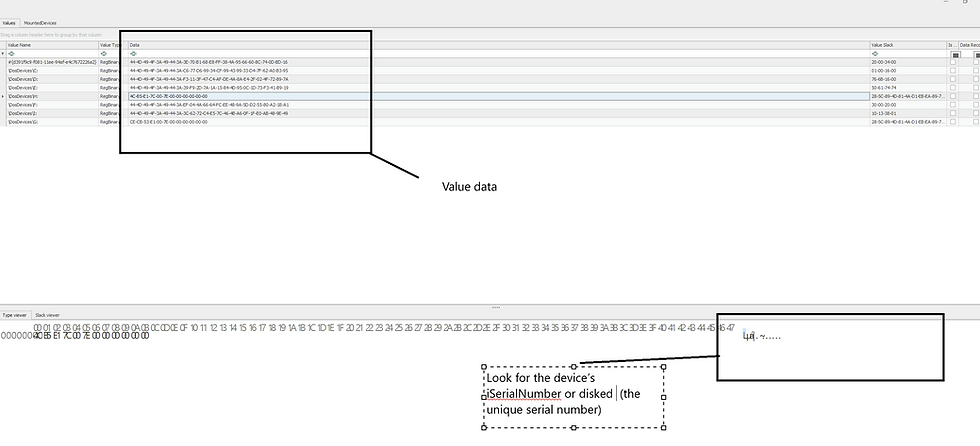
Why Is This Step Important?
This step lets you:
Tie the device to a GUID: This helps you match the device with its associated user account in later steps.
Track user activity: You’ll need this Volume GUID to dive deeper into the behavior of the device and its user.
Special Note:
This method only works for MSC USBSTOR devices, like USB flash drives. For other device types, you’ll need to rely on Windows Event Logs to identify which user account was active at the time the device was connected or used.
------------------------------------------------------------------------------------------------------
I know this is alot of information and I want to make thing wasy for you So you ready lets start
Lets say you +you’ve identified a unique identifier for your device, such as the iSerialNumber.
Registry explorer lets you search across all loaded registry hives at once, saving you a lot of time.
How to Search for Device Information
Load the right hives
Make sure you’ve loaded the SYSTEM, SOFTWARE, and user NTUSER.DAT hives in Registry Explorer. These hives contain most of the data related to devices.

Use the Find option:Go to Tools > Find and search for the device’s iSerialNumber (or another unique identifier diskid ).
Review the results:If the device information is still present in the registry, you’ll likely see many search hits. Not all of them will be relevant, so focus on keys needed for device profiling.

What to Look For
Search results will typically include keys that provide:
Device ID
Last Mountpoint Drive Letter
Volume GUID
You may also find hits in less common locations, like Windows Portable Devices, which could provide additional details. Double-click any result of interest to jump directly to that registry key within Registry Explorer.
Work Smarter, Not Harder
While it’s possible to manually comb through the registry to profile a device, this process can be incredibly time-consuming—especially if you’re dealing with multiple devices. By using unique identifiers and leveraging tools like Registry Explorer’s search function, you can dramatically speed up the process.
-----------------------------------------------Dean-------------------------------------------------


Comments