

Deep Dive: How Dropzone AI Investigates Alerts (Example Explained)
Updated: Nov 21, 2025

In the previous article, I explained the Dropzone AI dashboard and overall features. Now, let’s get into the real action — how Dropzone actually investigates an alert, using Panther as the example.
Let’s begin.
How Alerts Flow From Panther → Dropzone
Let’s say you’ve integrated:
Panther data source
Panther alert source
This means:
Every alert Panther generates will be picked up automatically by Dropzone.
No manual work.
No need to forward anything.
Dropzone grabs the alert → starts investigation immediately.
Alright, good.
-----------------------------------------------------------------------------------------------------------
Dropzone Picks the Alert & Starts Investigation
Once Dropzone receives the alert, it begins analysis instantly. After a short time (usually under a minute), the AI spits out:
Full investigation
Conclusion (benign, suspicious, or malicious)
Summary
Top findings
And here’s the important part:
If Dropzone marks an alert as “Benign,” 99.9% of the time it is actually benign.
So you can safely close it.
Also important:
If you close the alert in Dropzone, it gets closed in Panther as well.
Any note or comment you add → also gets added to Panther.
Super useful.

-----------------------------------------------------------------------------------------------------------
Opening the Alert – The Investigation Screen
When you open the alert, this is what you see (I had to hide sensitive info in the real screenshot):
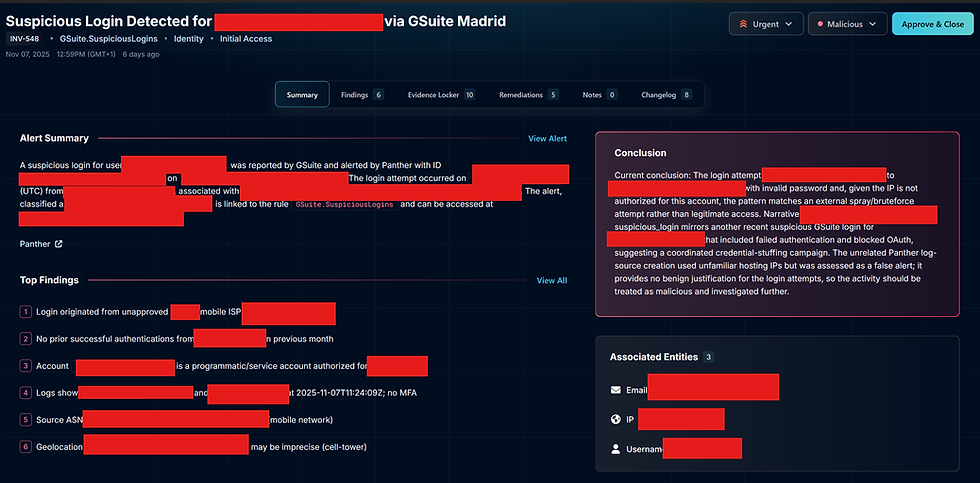
Alert Summary
AI Conclusion
Top Findings
Links to original tool (Panther button on the left side)[
It’s extremely clean and simple.
From here, you have 2 choices as an analyst:
Method 1: Investigate manually in Panther
Click the Panther button → open the alert in Panther → do your normal manual investigation.

Method 2: Use Dropzone’s full investigation
This is the easier method, and I’ll explain it below.
After reviewing the alert:
Select your conclusion (benign/suspicious/malicious)
Add your comment
Save
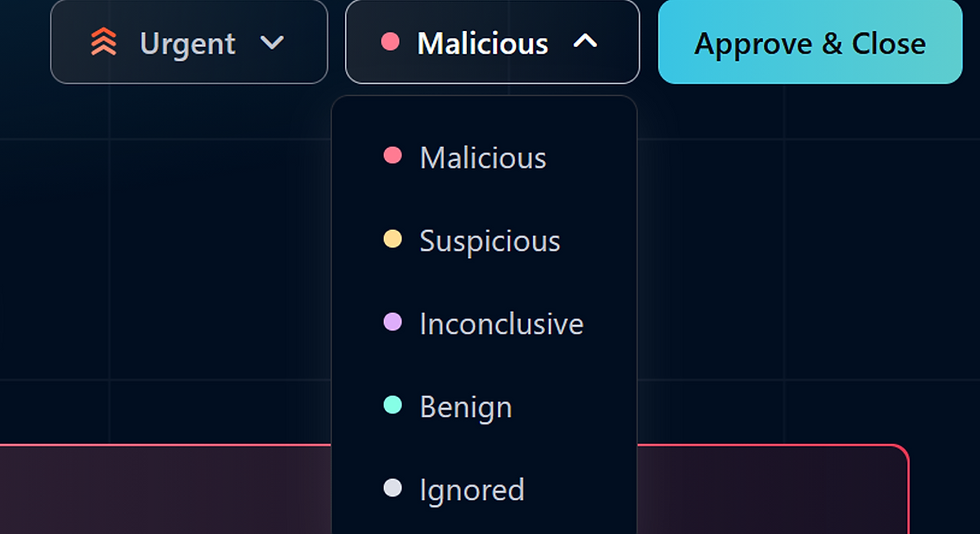
That’s it. Alert will close in both systems.

-----------------------------------------------------------------------------------------------------------

Findings Tab – The Brain of Dropzone
The Findings tab is where you see exactly what questions the AI asked during its investigation.

Dropzone literally interrogates the alert:
“Has this IP been used before?”
“Is this user associated with risky activity?”
“Does this resemble past malicious alerts?”
“Is this event common for this device/user?”
“Any MITRE technique indicators?”
Every question → AI’s response → Final verdict.
You can click on each question to see:
What Dropzone checked
What information it used
Why it reached the verdict
This transparency is what makes Dropzone so powerful. It’s like sitting inside the brain of an analyst.
-----------------------------------------------------------------------------------------------------------
Evidence Locker – All Evidence in One Place
This is basically a collection of everything Dropzone used during the investigation.
Examples:
IPInfo lookup results
Geo location
ASN
Device/user history
File reputation
Prior alerts
Previous analyst comments
Other tools' data
You can click View Response to see details.

Dropzone also checks previous 5 alerts related to this case.
It looks at:
What analysts concluded
What comments they left
Whether those alerts were benign or malicious
This is where your past decisions matter — Dropzone keeps learning from your behaviour.
I call this “AI learning from the past” 😂
-----------------------------------------------------------------------------------------------------------
Remediation Tab – What To Do If Malicious
If the alert is malicious, Dropzone provides:

Recommendations
Steps to take
What should be contained
What needs review
At top, you’ll see Containment Actions.
Dropzone currently supports automatic remediation for a few integrated apps (for example: Microsoft Defender, Okta, etc.)

If enabled:
AI will automatically isolate the machine or disconnect the user if the alert is malicious.
This is insanely powerful.
-----------------------------------------------------------------------------------------------------------
Change Log – Timeline of Everything
The Change Log tab shows a timeline:

When alert came in
When investigation started
Any status change
Analyst comments
If alert was closed
If remediation was triggered
It’s a clean, readable timeline.
-----------------------------------------------------------------------------------------------------------
Second Method of Investigation – “Ask a Question”

Earlier, I mentioned two ways to investigate:
1. Manual investigation using Panther
2. Using Dropzone findings
Here’s the third and easiest method:
Just ask Dropzone a question.
Example questions:

“Has this IP been used by any other user?”
“Is this user agent associated with this IP anywhere in our logs?”
“Show me all events linked to this process.”
Just type your question like human language → Dropzone runs a full investigation across all logs and gives you the answer.
No querying.
No log diving.
No manual searching.
One of my favourite features.
-----------------------------------------------------------------------------------------------------------
False Positive Example – Benign Alert
Let’s take another example: MFA disabled by user.
Normally this may look suspicious. But in reality, this was normal behaviour.

Dropzone marked it as benign, and if you read the investigation, it clearly tells you why.
Here you don’t need to investigate — just approve and close.
-----------------------------------------------------------------------------------------------------------
Why AI Saves Massive Time (Realistic SOC Example)
Let’s say 10 alerts arrive:
9 are false positives
1 is true positive
A human analyst — even a very good one — will take about 45 minutes to investigate all 10.
There is also the chance they may get tired or distracted and miss the true positive.
Now compare this with Dropzone:
It will mark 9 alerts as benign within 10 minutes
It will highlight 1 true positive clearly
You just review the 1 true positive
Approve the 9 benign ones
This saves enormous time.
This is why AI is becoming a huge part of SOC. Not because it replaces jobs, but because:
It removes the noise so analysts can focus on the real threats.
-----------------------------------------------------------------------------------------------------------
Final Thoughts
You’ve now seen exactly how a Dropzone AI alert looks, how it thinks, how it asks questions, and how to review it.
In the next article, I will show:
Sentinel One, CrowdStrike Example
--------------------------------------------------Dean----------------------------------------------------
Check out next article below:


Comments